
On this page
- How to log in to the E-Way Bill portal
- Official E-Way Bill portal addresses
- OTP and two-factor authentication
- New user? Register before your first login
- Forgot your username or password?
- Login not working? Common errors
- E-Way Bill login on mobile
- Print or download an e-way bill
- What you can do after logging in
- Latest E-Way Bill updates
- Frequently asked questions
How to log in to the E-Way Bill portal
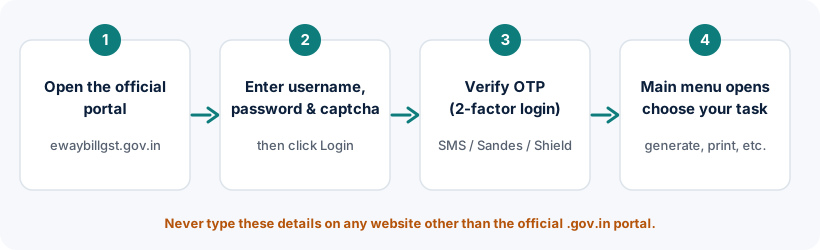
The login works the same way for every GST-registered business, transporter and sub-user in every state. Follow these four steps.
Step 1: Open the official portal
Type ewaybillgst.gov.in into your browser's address bar, or use the button on this page. Click Login on the portal's home page. If the main portal is slow, the E-Way Bill 2.0 portal (ewaybill2.gst.gov.in) is an official alternative.
Step 2: Enter your username, password and captcha
Use the E-Way Bill username you created when you registered on the e-way bill system. It is not your GSTIN and it is separate from your GST common portal login. Passwords are case-sensitive. Type the captcha exactly as shown; if it is hard to read, refresh it.
Step 3: Complete the OTP (two-factor authentication)
Since 1 April 2025, every user has to verify an OTP after entering the password. You can receive it by SMS, in the Sandes app, or generate it in the NIC-GST-Shield app. Enter it before it expires. Our E-Way Bill login OTP guide explains each method and what to do when no OTP arrives.
Step 4: Choose what you want to do
After a successful login, the main menu lets you generate, update, extend, cancel or print e-way bills, view reports and manage sub-users. Log out when you finish, especially on a shared computer.
Only enter your details on the official portal. Several look-alike pages rank in search results for “eway bill login”, including private software login screens. Check that the address ends in .gov.in before you type anything.
Official E-Way Bill portal addresses
These are the government addresses connected with the E-Way Bill system. Bookmark the one you use so you don't have to search for it each time.
| Portal | Address | Use it for |
|---|---|---|
| E-Way Bill portal (EWB 1) | ewaybillgst.gov.in (opens official site in a new tab) | Login, registration, generation, printing and all regular work |
| E-Way Bill 2.0 portal | ewaybill2.gst.gov.in (opens official site in a new tab) | Parallel official portal launched on 1 July 2025; useful if the main portal is unavailable |
| Old address | ewaybill.nic.in | Earlier address of the system. Use ewaybillgst.gov.in instead of relying on old bookmarks |
| E-invoice portal | einvoice1.gst.gov.in (opens official site in a new tab) | Generating IRNs for e-invoices; see our e-invoice login guide |
| GST common portal | gst.gov.in (opens official site in a new tab) | GST registration, returns and updating your registered mobile or email |
How to spot a fake or look-alike login page
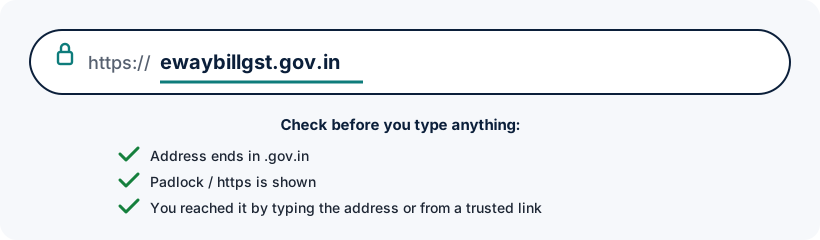
- The address must end in .gov.in. Sub-domains of private companies (for example, a site that simply has “ewaybill” in its name) are not the government portal.
- Look for https and the padlock symbol in the address bar.
- The official portal never asks you to log in through Google, Facebook or a third-party account.
- GST and e-way bill offices will never ask for your username, password or OTP by phone, email or SMS.
OTP and two-factor authentication
Two-factor authentication (2FA) is now part of every E-Way Bill login. After your username and password, the portal asks for a one-time code. There are three official ways to get it:
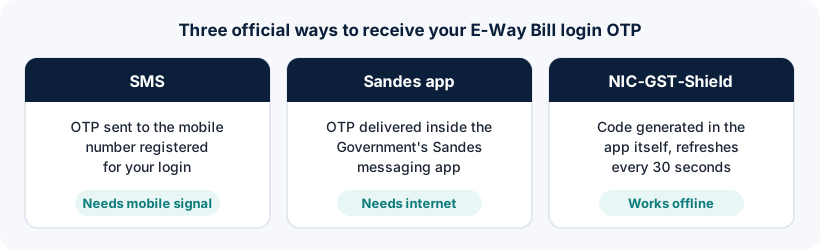
There is no legitimate way to skip this step. If the OTP doesn't arrive, switching to the Sandes or NIC-GST-Shield method usually solves it. Read the full OTP and 2FA guide.
New user? Register before your first login
Your GST registration does not automatically give you an E-Way Bill username. You need to register once on the e-way bill portal. Which route you take depends on who you are:
GST-registered business
Register with your GSTIN and the OTP sent to the mobile number registered on the GST portal.
Read guide →Transporter without GSTIN
Enrol using Form GST ENR-01 to get a 15-digit Transporter ID (TRANSIN) and a login.
Read guide →Staff or branch users
The main user creates sub-users with their own IDs, passwords and permissions.
Read guide →Not sure which one?
Compare the three registration types side by side.
Read guide →Forgot your username or password?
The portal has separate recovery options for each. Both use an OTP sent to your registered mobile number.
Forgot password
Use Forgot Password on the login page and verify the OTP, then set a new password.
Forgot username
Use Forgot Username, enter your GSTIN or transporter ID details and verify the OTP to see your username.
Login not working? Common errors
| What you see | Likely cause | What to do |
|---|---|---|
| Invalid username or password | Typing error, wrong username, or caps lock on | Re-type carefully; reset the password if unsure |
| Login temporarily blocked | Several wrong attempts in a row | Wait a few minutes, then try once with the correct details |
| Account frozen / inactive | GST registration cancelled or suspended | Check your GSTIN status on the GST common portal |
| OTP not received | Mobile network, DND, or wrong registered number | Switch to Sandes or NIC-GST-Shield; check your registered number |
| Can log in but can't generate | GSTIN blocked for unfiled returns | File pending returns; see our troubleshooting guide |
Each of these, plus captcha and browser problems, is explained step by step in E-Way Bill login not working: causes and fixes.
E-Way Bill login on mobile
You can open the official portal in any modern mobile browser (Chrome, Safari, Edge) and log in exactly as on a computer. If you use the NIC-GST-Shield or Sandes app for OTPs, you can switch between the browser and the app on the same phone. See how to log in from your phone for tips on desktop view and saving PDFs.
Print or download an e-way bill
You don't always need to log in to print. The official portal has a public print option that works with the e-way bill number and a few details. Logged-in users can also use Print EWB from the e-Way Bill menu. Our guide to print e-way bill without login compares both routes.
What you can do after logging in
Generate an e-way bill
Fill Part A and Part B and get the e-way bill number.
Read guide →Print or download
Print, reprint or save an e-way bill as PDF.
Read guide →Check and verify
Confirm an e-way bill's details and status.
Read guide →Validity and extension
Work out how long an e-way bill is valid.
Read guide →Manage sub-users
Give staff their own logins with limited rights.
Read guide →Use E-Way Bill 2.0
Continue work on the parallel official portal.
Read guide →Latest E-Way Bill updates
- 1 April 2025: two-factor authentication (OTP) made mandatory for all E-Way Bill and e-invoice users. What it means for login
- 1 July 2025: E-Way Bill 2.0 portal launched alongside the main portal. How to use it
- 1 January 2025: e-way bills can't be generated for documents older than 180 days, and total validity including extensions is capped at 360 days. Full update log
Frequently asked questions
Is ewaybillogin.com the official E-Way Bill portal?
No. ewaybillogin.com is an independent information website. The official portal is ewaybillgst.gov.in, run by the National Informatics Centre (NIC). We do not offer a login form and never ask for your username, password or OTP.
Is the E-Way Bill login different for each state?
No. There is one national E-Way Bill portal and the login process is the same in Delhi, Kerala, Haryana, Tamil Nadu, Gujarat, Rajasthan, Karnataka, Uttar Pradesh and every other state. What does differ between states is the value limit for intra-state movement. See our e-way bill limit guide.
Can I log in to the E-Way Bill portal without an OTP?
No. Two-factor authentication has been mandatory for all users since 1 April 2025. If the SMS OTP is not reaching you, use the Sandes app or the NIC-GST-Shield app instead. Our OTP guide explains how.
Is the E-Way Bill login the same as my GST portal login?
No. The GST common portal (gst.gov.in) and the E-Way Bill portal are separate systems with separate usernames and passwords. You register on the E-Way Bill portal using your GSTIN, but you create a different username there.
Can I use my E-Way Bill username on the E-Way Bill 2.0 portal?
The E-Way Bill 2.0 portal was built to work alongside the main portal with the same e-way bill data. Registered users log in there with their existing E-Way Bill credentials and OTP. If your login fails on one portal, check our E-Way Bill 2.0 guide.
What should I do if my account gets blocked after wrong attempts?
The portal temporarily blocks login after repeated wrong passwords. Wait a few minutes and try again once with the correct details, or reset your password using Forgot Password. Repeated guessing only extends the problem.
Do transporters without a GSTIN need an E-Way Bill login?
Yes, if they need to update vehicle details (Part B) or generate e-way bills for their consignments. They enrol on the portal using Form GST ENR-01 to get a Transporter ID and login. See transporter ID enrolment.
Is there an official E-Way Bill mobile app?
The portal works in any mobile browser. The e-way bill system's registration menu also has options for SMS-based and Android-based access for registered users, which must be enabled from your account. Be careful with apps from unknown publishers that ask for your credentials. See our mobile login guide.
Official sources and references
- E-Way Bill System (official portal) (opens official site in a new tab)
- E-Way Bill 2.0 portal (opens official site in a new tab)
- E-Way Bill FAQs (official documentation) (opens official site in a new tab)
- E-Way Bill user manual (PDF) (opens official site in a new tab)
- Two-factor authentication help (PDF) (opens official site in a new tab)
- GST common portal (opens official site in a new tab)
We check these sources before each review. Portal screens and rules can change, so if something here differs from what you see on the official portal, follow the portal and tell us.